
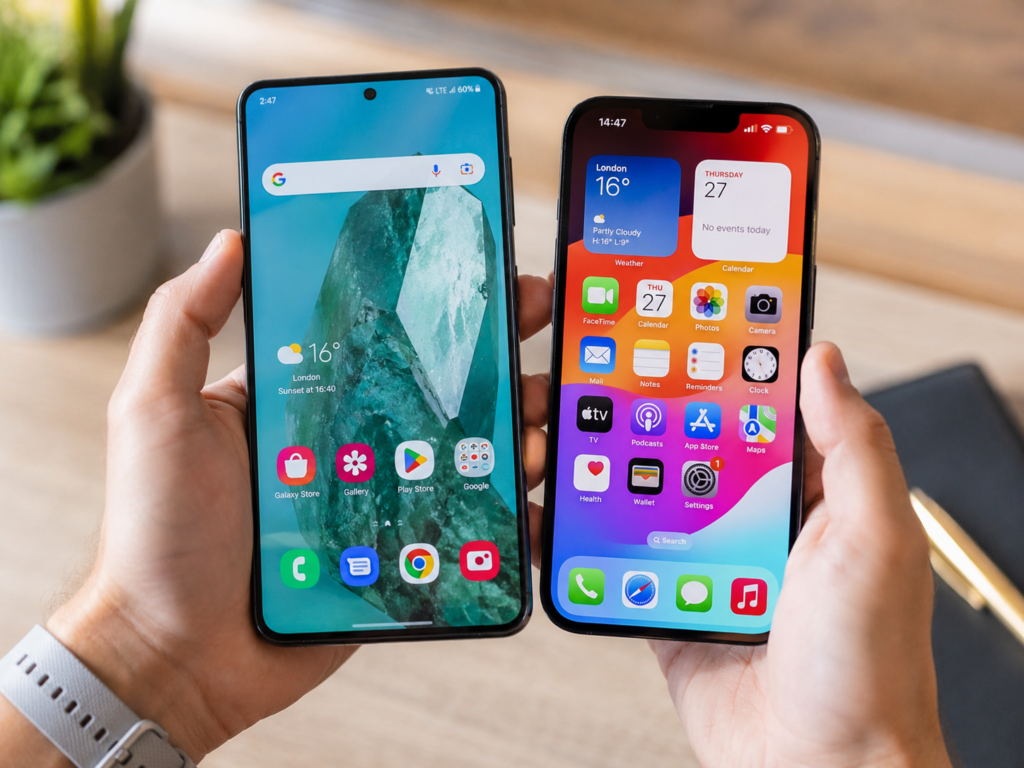
Switching from Android to iPhone can feel like a fresh start. The setup looks clean, the apps feel polished, and Apple services work closely together. You also gain access to features such as AirDrop, FaceTime, iMessage, Find My, and tight links with the Apple Watch, iPad, and Mac.
Still, moving to an iPhone is not an upgrade in every single area.
Android gives users more control over the interface, apps, storage, files, and multitasking. By comparison, Apple keeps tighter limits around many parts of iOS. Those limits create a consistent experience, but they can feel frustrating after years with Android.
At first, the differences might seem minor. Then you try to open two apps at once, install an app from outside the main store, or transfer a folder to a Windows PC. That is often the moment when the missing Android features become clear.
So, before switching from Android to iPhone, take a closer look at what you might lose.
Most of Your Data Can Move to the iPhone
First, the good news. Apple’s Move to iOS app transfers a large amount of data from an Android phone to a new iPhone.
The transfer can include:
- Contacts
- SMS messages
- Camera photos and videos
- Photo albums
- Calendars
- Call history
- Email accounts
- Files and folders
- Web bookmarks
- WhatsApp messages and media
- Voice recordings
- Some display and accessibility settings
In many cases, free Android apps are matched with their iPhone versions. You still need to download them from the App Store, though.
Even so, the transfer does not create a perfect copy of your old phone. Saved logins, app settings, offline downloads, notification preferences, and custom layouts can stay behind. Paid Android apps might need to be purchased again on iOS.
Music, books, and PDF files can take extra work too. So, check your important folders before wiping or selling the Android phone.
Split-Screen Multitasking Is Missing on iPhone
Many Android phones let you open two apps on the screen at the same time. For example, you can watch a video at the top and reply to messages at the bottom. You can also copy information from a browser into a document without jumping back and forth.
Android multitasking can include:
- Two apps in split-screen mode
- Picture-in-picture video
- Floating app windows
- Resizable windows on foldable phones
- Desktop-style layouts on selected devices
The iPhone supports picture-in-picture for compatible videos and calls. Yet it does not support normal split-screen multitasking for two full iPhone apps.
That feels strange on larger iPhones. The screen has enough room for two compact apps, but iOS still focuses on one main app at a time.
In practice, casual users might not care much. People who work, study, compare products, write notes, or handle email from a phone will notice the loss much faster.
Personally, I think this is one of the biggest gaps between Android and iPhone. Apple has improved multitasking on the iPad, so the missing phone version feels like a deliberate restriction rather than a hardware limit.
You Lose Guest Mode and Separate User Profiles
Next, Android supports multiple user accounts on many phones and tablets. Each user can have separate apps, files, settings, accounts, and passwords.
Guest mode is useful too. You can hand the phone to a friend or family member without giving access to personal messages, photos, emails, or banking apps.
The iPhone does not support standard user or guest profiles. Family Sharing connects subscriptions and purchases, but it does not create a separate private area on the same phone.
Apple now lets users lock or hide downloaded apps. That adds privacy, and it works well for sensitive apps. Still, it is not the same as giving another person a clean guest account.
For this reason, families that share one phone might find iOS less practical. A personal phone used by one person will not create the same problem.
Android Launchers Offer Much More Control
The current iPhone Home Screen is far more flexible than it used to be. You can place icons with more freedom, resize supported widgets, tint app icons, hide pages, and rearrange Control Center buttons.
That said, Android still gives you much deeper control.
On Android, you can replace the full Home Screen launcher. A third-party launcher can change:
- The app drawer
- Icon grid size
- Folder layout
- Search tools
- Swipe gestures
- Notification badges
- App-opening animations
- Icon shapes
- Home Screen shortcuts
You can also install full icon packs that change the look of hundreds of apps. Some launchers let you assign actions to individual icons. For example, tapping an icon opens the app, then swiping on it opens a related shortcut.
By comparison, Apple does not let users replace the main iPhone launcher. You can customize Apple’s layout, but you cannot swap the full interface for a different one.
Some people prefer Apple’s consistency. Others enjoy building a Home Screen that feels completely personal. If you belong to the second group, iOS can feel restrictive pretty quickly.
Installing Apps Outside the Main Store Is Harder
Android users can install apps from outside Google Play. Usually, this means downloading an APK file and allowing installation through a browser, app store, or file manager.
Sideloading can help with:
- Open-source apps
- Beta releases
- Apps unavailable in a certain country
- Older app versions
- Independent app stores
- Internal company tools
Apple has opened iPhone app distribution in selected regions. For example, eligible users in the European Union can access approved alternative app marketplaces and certain apps distributed through developer websites.
Still, Apple controls the process through regional rules and app checks. It does not work like traditional Android sideloading.
For most users, this difference will not matter. Many people install everything through Google Play or the App Store anyway.
Power users face a bigger adjustment. If you regularly test APK files, install open-source tools, or keep older versions of apps, the iPhone offers far less freedom.
Moving Files Between iPhone and Windows Takes More Steps
Android phones usually work well with Windows for direct file transfers. Connect the phone by USB, select file-transfer mode, then browse compatible folders through File Explorer.
Google’s Quick Share can also send photos, videos, documents, and other files wirelessly between Android and Windows devices.
The iPhone can transfer files to Windows, but the process often relies on:
- Apple Devices for Windows
- iCloud for Windows
- Direct photo import
- A cloud storage service
- A supported app with file sharing
- An external USB drive
The iPhone Files app has improved a lot. It can access local folders, cloud services, USB drives, and SD card readers. Even so, Windows users can find the process less direct than it is on Android.
Mac users get a much better experience. AirDrop and iCloud make file transfers fast and simple across Apple devices.
So, this loss depends heavily on the computer you use. Android often fits more naturally into a Windows setup. The iPhone fits best inside Apple’s own device family.
Expandable Storage Is Not Available
Many premium Android phones have dropped the microSD card slot. Still, expandable storage remains available on selected budget phones, rugged models, tablets, and specialist devices.
A microSD card can store:
- Photos
- Videos
- Music
- Offline maps
- Documents
- Downloads
- Camera footage
No iPhone supports a microSD card as built-in storage. You choose the storage capacity at purchase, and you cannot expand it later.
You can connect an external drive or card reader to a compatible iPhone. Then you can view and copy files through the Files app. Yet this does not turn the card into permanent storage for apps and system data.
For heavy camera users, this matters. The lowest storage option can fill up faster than expected, mainly with 4K video, downloaded games, and offline media.
For that reason, I would avoid choosing an iPhone based only on the lowest advertised price. Storage upgrades cost more at purchase, but they can save plenty of frustration later.
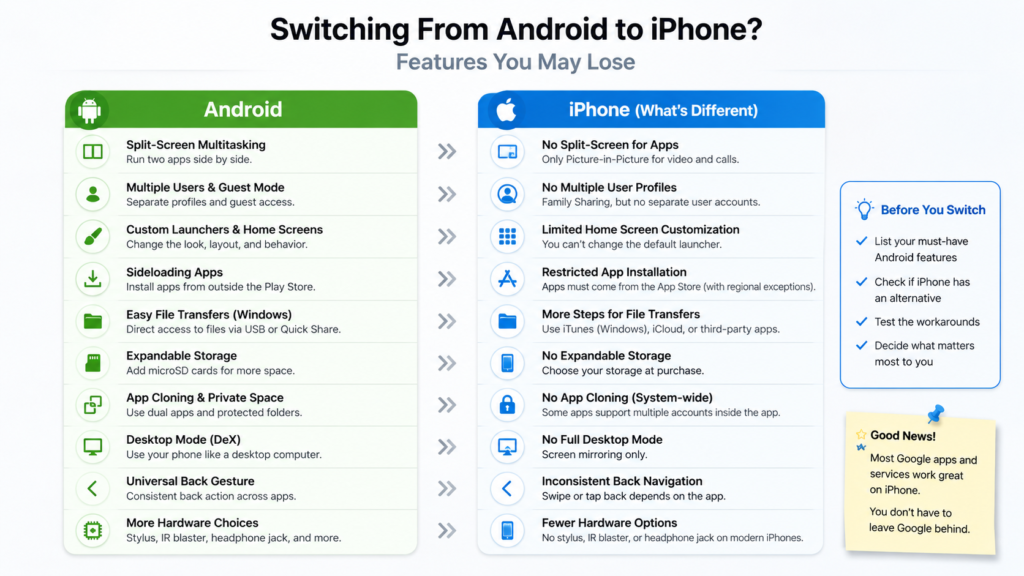
App Cloning Is More Limited
Many Android brands let users create a second copy of a supported app. This makes it easy to run two accounts on the same phone.
Samsung calls this feature Dual Messenger. Other manufacturers use names such as App Clone, Dual Apps, or Parallel Apps.
Android devices can also include protected areas such as Private Space or Samsung Secure Folder. These areas can hold separate apps, photos, accounts, and documents behind extra security.
The iPhone lets you lock and hide downloaded apps. Hidden apps move into a protected section of the App Library.
That helps, but it does not create a full second copy of every app.
Some iPhone apps support multiple accounts inside the app. Gmail, Instagram, Telegram, and several other services handle this well. Still, apps with one-account limits can become awkward for people who separate work and personal profiles.
Desktop Modes Such as Samsung DeX Are Gone
Selected Android phones can connect to a monitor and provide a desktop-style workspace. Samsung DeX is the most familiar example.
With compatible hardware, users can connect a Galaxy phone to a monitor, keyboard, and mouse. Apps then appear in windows, so the phone works more like a small computer.
The iPhone can mirror its screen or send video to an external display. Yet it does not provide a full DeX-style desktop with normal resizable iPhone app windows.
Most buyers never use this feature. Still, frequent travellers and mobile workers can find it useful. A phone, portable monitor, and small keyboard can replace a laptop for simple tasks.
If that type of setup matters to you, switching from Android to iPhone will feel like a real step back.
Android Has a More Predictable Back Gesture
Android provides a system-level Back action. You can use a navigation button or swipe from the side of the screen.
The action stays fairly consistent across apps. Usually, it takes you to the previous page, menu, or screen.
iPhone navigation changes more often. Some apps support a swipe from the left edge. Other apps use a back button near the top. A few have their own close button or gesture.
At first, this can feel clumsy. You might swipe and get no response, then search for a small button in the corner.
After a few weeks, most users adapt. Still, Android’s universal Back action feels more predictable and faster in daily use.
Some Hardware Features Might Disappear Too
The exact losses depend on your current Android phone and the iPhone model you choose.
For example, you might lose:
- Fingerprint unlocking
- A built-in stylus
- An infrared remote
- A headphone jack
- Reverse wireless charging
- Very fast wired charging
- A gaming mode
- Manual camera settings
- Manufacturer-specific audio controls
- A microSD card slot
Some Android phones support both face recognition and fingerprint scanning. By comparison, current iPhones rely mainly on Face ID, apart from older Touch ID models.
Charging speed can feel different too. Many Android phones focus heavily on very fast wired charging. Apple takes a more conservative route.
Before buying, open the Settings app on your Android phone. Check the tools you use each week. Then compare them with the exact iPhone model on your shortlist.
Small features can matter more than processor benchmarks. You might not care about a faster chip, but you might care a lot about a missing fingerprint sensor.
Buying an iPhone Can Work Differently Too
Switching platforms is not only about software. The purchase model matters too.
Apple already offers trade-ins, carrier plans, and yearly upgrade options in selected markets. Reports have also pointed to broader subscription-style hardware plans. Buyers interested in that idea can read more about the possible Apple device upgrade program.
For some buyers, a monthly upgrade plan sounds convenient. For others, owning the phone outright makes more sense.
Either way, compare the full cost. Look at the monthly payment, upgrade rules, insurance terms, trade-in value, and ownership status at the end of the plan.
Google Apps Still Work on iPhone
Switching to iPhone does not force you to leave Google services.
Most major Google apps remain available on iOS, including:
- Gmail
- Google Maps
- Google Photos
- Google Drive
- Google Calendar
- Chrome
- YouTube
- Google Home
- Google Keep
You can keep using the same accounts and subscriptions. Many smart-home products and accessories work on both platforms too.
Modern iPhones support RCS messaging through supported carriers and regions. This improves group chats, image quality, typing indicators, and delivery information between iPhone and Android users.
At the same time, iMessage-only features still stay inside Apple’s system. So, mixed iPhone and Android groups can still behave differently from all-iPhone conversations.
Should You Switch From Android to iPhone?
An iPhone is a strong choice for users who want long software support, polished apps, dependable video recording, strong privacy controls, and close links with other Apple products.
Android remains the better fit for people who value customization, split-screen multitasking, guest profiles, app sideloading, direct Windows file transfers, or desktop modes.
Before switching, write down the five Android features you use most. Then check how iOS handles each one.
Do not focus only on features that sound impressive during a launch event. Focus on the tasks you repeat every day. That includes unlocking the phone, moving files, switching accounts, charging, replying to messages, and working across two apps.
For many users, the missing Android features become minor annoyances. For others, they can make the iPhone feel restrictive after the excitement wears off.
The best choice is simple. Pick the phone that matches your habits, not the phone with the loudest marketing.