
Most of us restart our phones only after something goes wrong. An app freezes. Wi-Fi stops working. The screen feels slow, or the battery suddenly drops much faster than usual.
A restart often fixes the problem, which raises a fair question. Should you restart your phone regularly, even when it seems to work fine?
For most people, restarting a phone once a week is a sensible habit. It can clear temporary software problems, refresh background services, finish certain updates, and stop processes that are no longer working properly. A restart can even provide a small security benefit in some cases.
That does not mean your phone needs a daily reboot. Modern iPhones and Android phones are built to run for long periods without shutting down. Still, an occasional restart takes very little effort and can prevent a few common frustrations.
What Happens When You Restart Your Phone?
Restarting your phone closes the operating system, apps, and active background processes. The device then loads everything again from a clean starting point.
Your photos, messages, apps, accounts, and personal settings stay in place. A restart does not erase anything. It is very different from a factory reset, which removes your data and returns the phone to its original setup screen.
Phones constantly run small tasks in the background. Some check for notifications. Others manage Wi-Fi, Bluetooth, location services, cloud backups, and app updates. Most of these tasks work without any trouble.
Sometimes, though, an app or system service gets stuck. It can keep using memory, battery power, mobile data, or processor resources long after it should have stopped. Restarting closes that task and loads a fresh version.
Think of it as giving the software a clean start. It will not repair broken hardware, but it can remove small glitches that build up during everyday use.
How Often Should You Restart Your Phone?
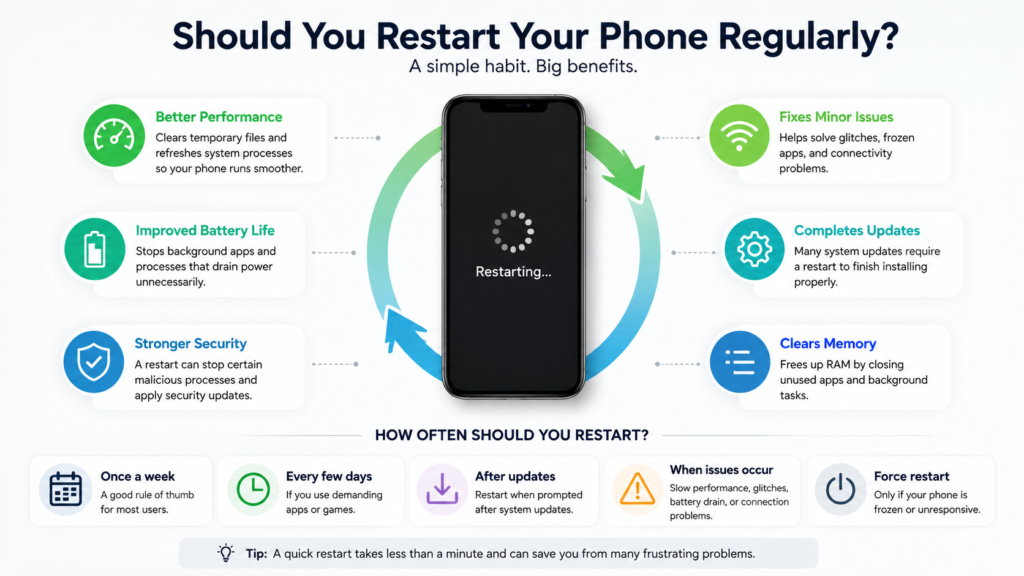
Restarting once a week is a good target for most iPhone and Android users. It is easy to remember, and it gives the phone a regular chance to reload its system services.
You do not need to follow that schedule perfectly. Missing a week will not damage your phone. A newer device that works well can often run much longer without a restart.
Your usage matters too. Someone who uses a phone mainly for calls, messages, and light browsing may rarely notice a difference. A person who games, edits videos, uses navigation for hours, or switches between many work apps can benefit from more frequent restarts.
A practical schedule looks like this:
- Once a week: A sensible choice for most users.
- Every few days: Useful for older phones or devices used for demanding apps.
- After an update: A good idea when the phone requests a restart.
- After a serious glitch: Helpful for frozen apps, connection errors, or sudden battery drain.
- Only as needed: Fine for a phone that stays fast and reliable.
Restarting several times each day is not normal. A phone that needs constant reboots may have a faulty app, low storage, battery wear, overheating, or a deeper software problem.
Can Restarting Make Your Phone Faster?
A restart can make your phone feel faster, especially after it has been running for many days.
Apps use memory so they can open quickly and continue tasks in the background. The operating system usually manages this memory well. Still, one badly behaved app can use more resources than it should.
Restarting closes every active app and reloads the system. Menus may respond more quickly. Scrolling may feel smoother. Apps that refused to open can start working again.
The improvement can feel quite noticeable on older phones. Newer models often hide these problems better, though they are not completely immune.
Still, a restart cannot fix every type of slowdown. It will not create extra storage, replace an ageing battery, or make an old processor more powerful.
Check these common causes when the phone remains slow:
- Internal storage is almost full.
- One app keeps running in the background.
- The operating system is outdated.
- The phone is overheating.
- The battery has lost much of its original capacity.
- Too many apps start automatically.
- A recent app update contains a bug.
- The internal storage hardware is beginning to fail.
A restart that fixes the problem for only a few hours gives you a useful clue. Something starts causing trouble again after the phone loads. Battery usage and background activity screens can help you identify the app.
Does Restarting Improve Battery Life?
Restarting can improve battery life in certain situations. The benefit usually appears after an app or system process gets stuck and keeps using power.
A navigation app may continue checking your location. A social media app can get trapped in a syncing loop. Bluetooth or mobile data can remain active longer than expected. Restarting stops those tasks and resets the related services.
You may notice better battery life for the rest of the day after the reboot. That is a good sign that software caused the drain.
A restart cannot restore a worn battery. Phone batteries lose capacity over time through heat, charging cycles, age, and normal chemical wear. No restart can reverse that process.
Check the battery page in your phone’s settings after unusual power loss. Look for an app with much higher usage than the rest. Updating, reinstalling, restricting, or removing that app often brings a more lasting fix.
In my view, restarting is a useful first step for sudden battery drain. It should not become the only fix. Repeated problems deserve a closer look.
Can Restarting Improve Phone Security?
A weekly restart can provide a small security benefit. Some attacks run only in active memory. Turning the phone off and starting it again can stop those processes.
That protection has limits. A harmful app installed on the phone can launch again after startup. Restarting will not remove stolen passwords, unsafe account settings, or every type of spyware.
Phone security still relies on basic habits:
- Install system updates as soon as practical.
- Keep apps updated.
- Download apps from trusted stores.
- Remove apps you no longer use.
- Use a strong passcode.
- Turn on fingerprint or face authentication.
- Review app permissions.
- Avoid unknown links and attachments.
- Keep automatic security updates active.
Restarting works best as one small part of your security routine. It should never replace software updates or careful app management.
Restarting Can Help Complete Updates
Many phone updates need a restart before they become fully active. The phone can download files in the background, but the operating system may need to reboot to replace active components safely.
Android phones often display a restart button after downloading a system update. Some models install updates overnight and restart automatically.
iPhones can install updates automatically during the night. The phone usually needs power, Wi-Fi, and enough free storage. A restart forms part of that process.
Do not ignore a restart request for days. The update may contain bug fixes, security patches, or performance changes that remain inactive until the phone reboots.
Let an update finish once it has started. Do not force the phone to shut down during installation. An interrupted update can cause startup errors or leave the device stuck on a loading screen.
Signs You Should Restart Your Phone Right Away
You do not need to wait for your usual weekly restart. Reboot the phone after one of these problems appears:
- Apps freeze or close without warning.
- Wi-Fi connects but pages will not load.
- Mobile data stops working.
- Bluetooth devices refuse to connect.
- The camera opens to a black screen.
- Notifications arrive very late.
- The keyboard disappears.
- The phone feels hot during light use.
- Calls fail despite a strong signal.
- Battery life drops suddenly.
- The screen becomes slow or unresponsive.
- An update asks for a restart.
A restart is quick, safe, and easy. It is one of the best first steps for a phone that starts acting strangely.
Check for updates and available storage after the problem remains. Android users can test safe mode to see whether a downloaded app is causing the issue. Persistent freezing, overheating, swelling, charging trouble, or random shutdowns need professional attention.
Restart or Shut Down: Is There a Difference?
For routine phone maintenance, the Restart option is enough. It closes the software and starts the phone again automatically.
A full shutdown can help with stubborn issues. Turn the phone off, leave it off for around 30 seconds, then turn it back on. That short pause gives hardware components and wireless services time to power down fully.
A force restart serves another purpose. It helps after the screen freezes and the normal power menu will not appear. The button combination varies by phone model.
Use a normal restart for your weekly routine. Save a force restart for times when the phone stops responding.
Is Restarting Your Phone Every Day Bad?
Restarting every day is unlikely to damage a modern phone. It simply does not offer much value for most people.
A daily reboot can become inconvenient. Apps need time to reload. Notifications may arrive late for a few moments. You will need to enter your main passcode after startup, even on phones with face or fingerprint unlocking.
Frequent restarts can hide a deeper issue too. A healthy phone should not need a reboot every morning just to stay usable.
Check the apps, storage, battery health, and system updates when performance drops each day. Restarting may provide temporary relief, but the real cause still needs attention.
Should You Restart Before Switching Phones?
Restarting your current phone is not required before moving to a new device, but it can help clear connection problems during a data transfer.
Transfers rely on Wi-Fi, Bluetooth, cables, cloud backups, and account verification. A stuck wireless service can interrupt the process. Restarting both phones before starting the transfer gives those services a clean start.
People moving between operating systems often have extra questions about messages, photos, apps, passwords, and account access. This guide to switching from Android to iPhone explains the main steps and the details that are easy to miss.
Back up your data before any major transfer. Keep both phones charged, connect them to a stable network, and avoid using them during the process.
Should You Use Automatic Restart Settings?
Some Android phones include automatic restart tools. Samsung Galaxy devices, for example, can restart on a schedule or restart automatically after the system detects a need.
This feature can be useful for people who rarely turn off their phones. Set the restart for a quiet time, such as early morning. The phone should have enough battery power, and no active calls or important tasks should be running.
Automatic restart settings are not present on every phone. iPhones do not offer a simple weekly restart schedule in the standard settings.
A manual weekly restart remains easy enough. Pick a regular moment, such as Sunday evening or just before bed.
The Practical Answer
Yes, restarting your phone regularly is a good habit. Once a week works well for most people.
A reboot can refresh background services, complete updates, stop temporary glitches, and fix certain connection or battery problems. It may provide a small security benefit too.
Do not expect miracles. Restarting cannot repair damaged hardware, restore an old battery, or permanently fix a faulty app. A problem that returns every day needs more than another reboot.
My own recommendation is simple. Restart the phone once a week, then restart sooner after an update or an unexpected problem. It takes less than a minute and can save you from a surprising amount of frustration.